








Quick answer! “Error establishing a database connection” means WordPress can’t reach the database that stores your content, usually caused by wrong credentials in wp-config.php, a database server that’s down or overloaded, or a corrupted database.
A 500 Internal Server Error is a different, more general error, it’s sometimes caused by a database problem, but far more often it’s a PHP memory limit, a plugin conflict, or a broken .htaccess file. This post covers both, and how to tell which one you’re actually dealing with.
Table of contents
What “error establishing a database connection” actually means
Nearly everything that makes up your site, the posts themselves, page settings, user logins, most plugin configuration, lives inside a MySQL or MariaDB database rather than in the files you’d see through an FTP client. Loading any page means WordPress first has to open a connection to that database and pull what it needs before it can render anything at all. This error shows up specifically when that opening handshake never succeeds, not a slow response, not a partial read, but a connection that never gets made in the first place.
What causes it
- Incorrect database credentials. The database name, username, password, or host in wp-config.php doesn’t match what the database server actually expects, often after a migration, a manual server change, or a hosting switch.
- The database server is down or unresponsive. This can be a hosting-side outage, a server restart, or the database process crashing under load.
- Too many simultaneous connections. Shared hosting environments cap how many database connections can be open at once. A traffic spike or an inefficient plugin running excessive queries can hit that ceiling, and every new visitor gets this error until connections free up.
- A corrupted database. Database tables can become corrupted from an interrupted import, an abrupt server crash, or a failed update, WordPress can technically reach the database but can’t read the damaged tables correctly
- A corrupted wp-config.php file itself, less commonly, if the file has been partially overwritten or has a syntax error, WordPress may fail before it even gets to the credentials.
Step-by-step: how to fix it
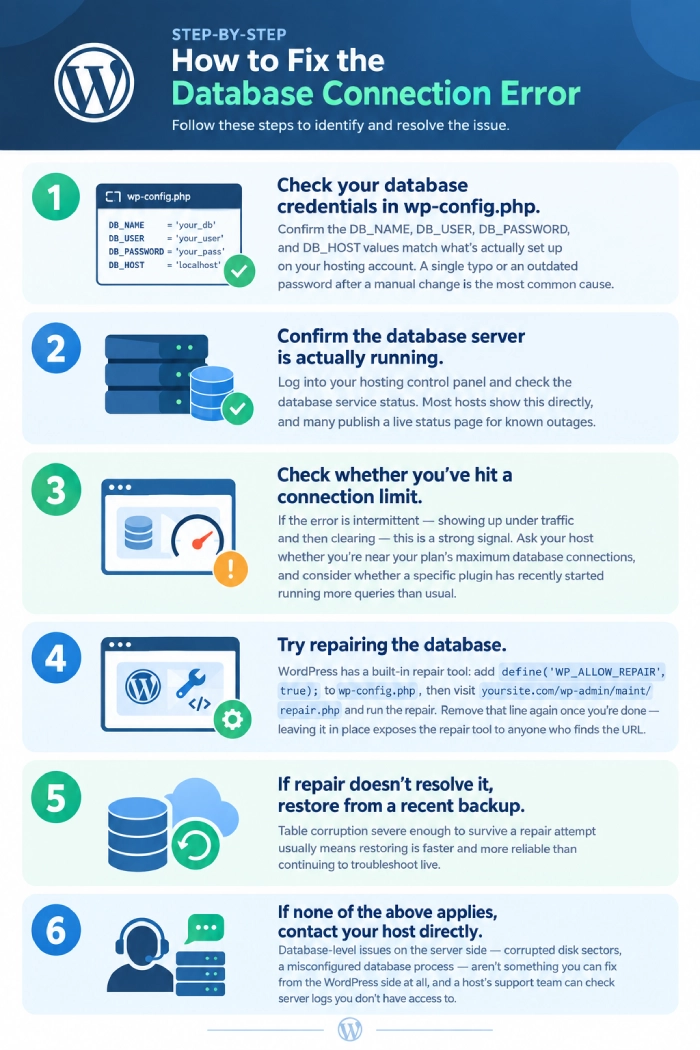
- Check your database credentials in wp-config.php. Confirm the DB_NAME, DB_USER, DB_PASSWORD, and DB_HOST values match what’s actually set up on your hosting account. A single typo or an outdated password after a manual change is the most common cause.
- Confirm the database server is actually running. Log into your hosting control panel and check the database service status. Most hosts show this directly, and many publish a live status page for known outages.
- Check whether you’ve hit a connection limit. If the error is intermittent — showing up under traffic and then clearing — this is a strong signal. Ask your host whether you’re near your plan’s maximum database connections, and consider whether a specific plugin has recently started running more queries than usual.
- Try repairing the database. WordPress has a built-in repair tool: add define(‘WP_ALLOW_REPAIR’, true); to wp-config.php, then visit com/wp-admin/maint/repair.php and run the repair. Remove that line again once you’re done — leaving it in place exposes the repair tool to anyone who finds the URL.
- If repair doesn’t resolve it, restore from a recent backup. Table corruption severe enough to survive a repair attempt usually means restoring is faster and more reliable than continuing to troubleshoot live.
- If none of the above applies, contact your host directly. Database-level issues on the server side, corrupted disk sectors, a misconfigured database process, aren’t something you can fix from the WordPress side at all, and a host’s support team can check server logs you don’t have access to.
Is a 500 Internal Server Error actually a database problem?
Sometimes, but usually not. A 500 error is WordPress and your server’s generic way of saying “something went wrong” without specifying what. It gets triggered by a much wider range of causes than a database connection failure does.
When a 500 error is database-related: -The database is so overloaded that queries are timing out rather than failing outright, which can surface as a 500 instead of the specific database connection message, A corrupted table is causing a PHP fatal error partway through a page load, rather than failing cleanly at the connection stage
When it’s not database-related (the more common case): – A PHP memory limit being exceeded, A corrupted .htaccess file, A plugin or theme conflict, especially right after an update, A PHP syntax error in a theme’s functions.php or a custom code snippet, A server-level timeout on a long-running process
How to tell the difference: Check your error log. Your host’s error log or WordPress’s own debug.log (enabled by adding define(‘WP_DEBUG_LOG’, true); to wp-config.php) will usually name the actual cause. If the log mentions wpdb, MySQL, or a connection timeout, you’re looking at a database issue and the steps above apply. If it names a specific plugin file, a memory exhaustion message, or a PHP syntax error, the fix is elsewhere, typically deactivating the plugin in question or raising the PHP memory limit.
Preventing both going forward
- Keep the database optimised: Bloated tables (old post revisions, spam comments, orphaned data from uninstalled plugins) make every query slower and more likely to time out under load.
- Match your hosting plan to your actual traffic: A site that’s outgrown shared hosting’s connection limits will keep hitting this error under normal traffic, not just during spikes.
- Test updates on staging before they touch production: Most 500 errors that aren’t database-related trace back to an update that wasn’t tested first.
- Keep a recently tested backup on hand: Whether the cause turns out to be database corruption or something else entirely, a good backup turns a stressful diagnosis into a fast recovery.
Should you fix this yourself, or call in a professional?
Every fix above is something a site owner can attempt to do, credentials, connection limits, and even the repair tool are all reachable from a standard hosting control panel. But there’s a real gap between “possible to do yourself” and “the fastest, safest way to actually get it done,” and a few things tend to tip the balance toward bringing in a WordPress professional or agency rather than troubleshooting solo:
- The risk of making it worse: Editing wp-config.php, running a database repair, or restoring a backup can all cause real data loss if done incorrectly, and unlike deactivating a plugin, a mishandled database fix isn’t always something you can simply undo. Someone who’s done this hundreds of times knows which steps are safe to attempt live and which absolutely need a backup in hand first.
- Diagnosis speed. Correctly reading a raw error log and identifying whether you’re looking at a credentials problem, a connection limit, or table corruption takes pattern recognition that mostly comes from repetition. What takes a site owner an anxious hour of searching often takes an experienced developer a few minutes, because they’ve already seen the exact error many times before.
- Access to tools most site owners don’t have: Checking actual database connection counts, reading MySQL logs directly, or spotting a resource cap your host hasn’t flagged usually requires a level of server access and technical fluency beyond what a standard hosting dashboard offers.
- The cost of your own time. Every hour spent troubleshooting a down site is an hour not spent running the business behind it, for a revenue-generating site, that hour typically costs more than professional help would have
- It rarely happens in isolation: A site that hits this error once often has an underlying condition behind it, undersized hosting, a poorly optimised plugin, an outdated PHP version, that keeps causing problems until someone actually addresses the root cause instead of just clearing the immediate error.
Working through the fixes above yourself is a reasonable first move, and understanding what’s happening is useful regardless of who ends up fixing it. But if the site is business-critical, or the steps above don’t resolve it, it’s usually faster and safer to bring in a web agency or WordPress specialist than to keep troubleshooting alone, fixing a one-off error yourself is a very different thing from having someone catch the underlying cause before it happens again.
Quick answer: A standard WordPress maintenance retainer includes core, theme, and plugin updates (usually tested on staging first), daily offsite backups, uptime and security monitoring, malware scanning, periodic reporting, and a set amount of included developer time for small fixes. Higher tiers add performance optimisation, a content updating SLA, faster response times, and dedicated support.
FAQs
Not necessarily. In most cases the database is intact and simply unreachable or temporarily overloaded, fixing the connection or the credentials restores everything. Data loss is a real risk only with severe corruption, which is why testing backups matters.
Indirectly, yes, a poorly optimised plugin running excessive queries can push a site past its connection limit, especially on shared hosting. It’s a different mechanism than a plugin causing a 500 error, but the practical fix (deactivate and test) is similar.
That pattern usually points to a connection limit being hit under load rather than a hard credential or corruption problem, if it were credentials, the error would be constant.
If it’s a straightforward credentials mismatch, that’s safe to fix yourself. If you’re looking at database repair or corruption, and especially if you don’t have a recently tested backup, it’s worth bringing in someone experienced rather than risking further damage while troubleshooting live.
Need a strong team specialised in WordPress Website Maintenance?
Speak to SBWD today to get a free website security audit to see what security gaps there are to fill.