









Table of contents
Why “it’s scheduled” isn’t the same as “it works”
A backup plugin reporting success only confirms that a process ran, not that the result is usable.
Backups fail silently in ways that never show up until the moment you need them: a database export that times out partway through on a large site, a media library that gets skipped because of a storage limit, a corrupted archive that looks fine in a file listing but won’t unpack.
None of that shows up as an error in your dashboard. It shows up when you try to restore and the site doesn’t come back.
Step-by-step: how to test a backup
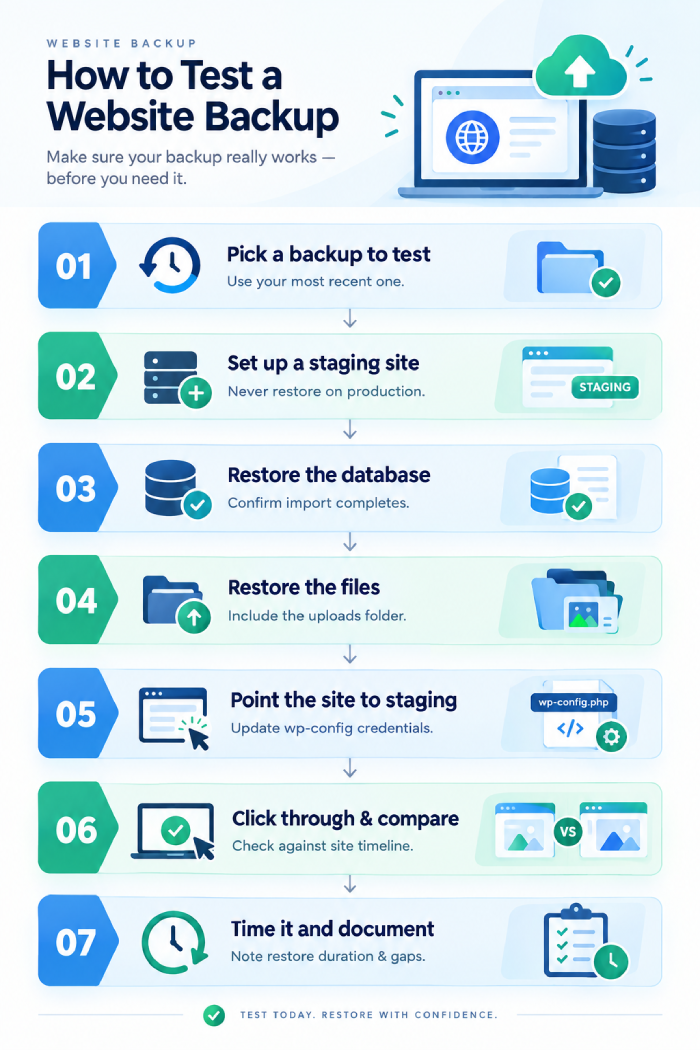
- Pick a recent backup to test: Use your most recent one, that’s the one you’d actually reach for in an emergency, so it’s the one worth verifying.
- Set up a place to restore it that isn’t your live site: A staging environment (many hosts offer one-click staging) or a local development environment (Local, DevKinsta, or similar) both work. Never test a restore directly on production, if the backup is bad, you’ll have caused the exact outage you were trying to prevent against
- Restore the database: Import the database file into the staging environment and confirm it completes without errors. A database restore that silently truncates partway through is one of the most common hidden backup failures.
- Restore the files: Upload and extract the full file backup, themes, plugins, uploads folder, and any custom code. Check that the archive actually contains everything; a common failure is a backup that captures the database but skips the wp-content/uploads folder because of its size.
- Update the wp-config.php database credentials: To point to the staging environment’s database, so the restored site can actually connect.
- Load the site and click through it: Homepage, a few interior pages, any forms, and anything transactional if it’s an ecommerce site. Confirm images load, menus work, and nothing throws a database connection error.
- Check for gaps specifically: Compare a few recent posts, orders, or form submissions against what you’d expect from the live site’s timeline. A backup that’s older than it claims to be, or one that’s missing the last few days of activity, is a real and common failure mode.
- Time the whole process: Note how long the restore actually took from start to finish. If your business can’t tolerate being down for that long, that’s a planning problem worth solving before an actual incident, not during one.
- Tear down the staging copy once you’re satisfied: Or you can keep it around if you use staging regularly for update testing too.
What a failed test usually reveals
- Incomplete file backups, usually the uploads folder, skipped due to size or a storage cap being hit.
- Database export errors, a large site’s database export timing out or getting truncated.
- Expired or overwritten storage, a backup destination that only retains a few days, so what you thought was a month of history is actually much thinner
- Credentials or permissions issues, the backup itself is fine, but nobody has documented how to actually access and restore it under time pressure.
How often to test
A quarterly test restore is a reasonable baseline for most small business sites. Test more often, monthly, for anything transactional or high-traffic, where a bad backup would be more costly to discover late. At minimum, test immediately after any major change to your backup setup: a new plugin, a hosting migration, or a change in storage provider.
FAQs
No. A backup archive can open and look structurally fine while still being missing content or containing a database dump that fails partway through import. Only a full restore tells you the backup is actually usable.
Offsite, separate from your live server, cloud storage (S3, Google Drive, Dropbox, or a dedicated backup service) rather than a folder on the same hosting account. If your server goes down or gets compromised, a backup stored alongside it can go down with it.
A common baseline is 30 days of daily backups, plus a few older monthly snapshots kept longer, enough that you can go back further than 30 days if a problem (like malware) sat undetected for a while before you noticed it.
Managed hosting often handles backup storage, but rarely tests restores proactively unless it’s an incident. Treat backup testing as something you or your maintenance provider owns directly, not something to assume is covered.
Need a strong team specialised in WordPress Website Maintenance?
Speak to SBWD today to get a free website security audit to see what security gaps there are to fill.